PSX Retro Tools for Blender
A downloadable tool

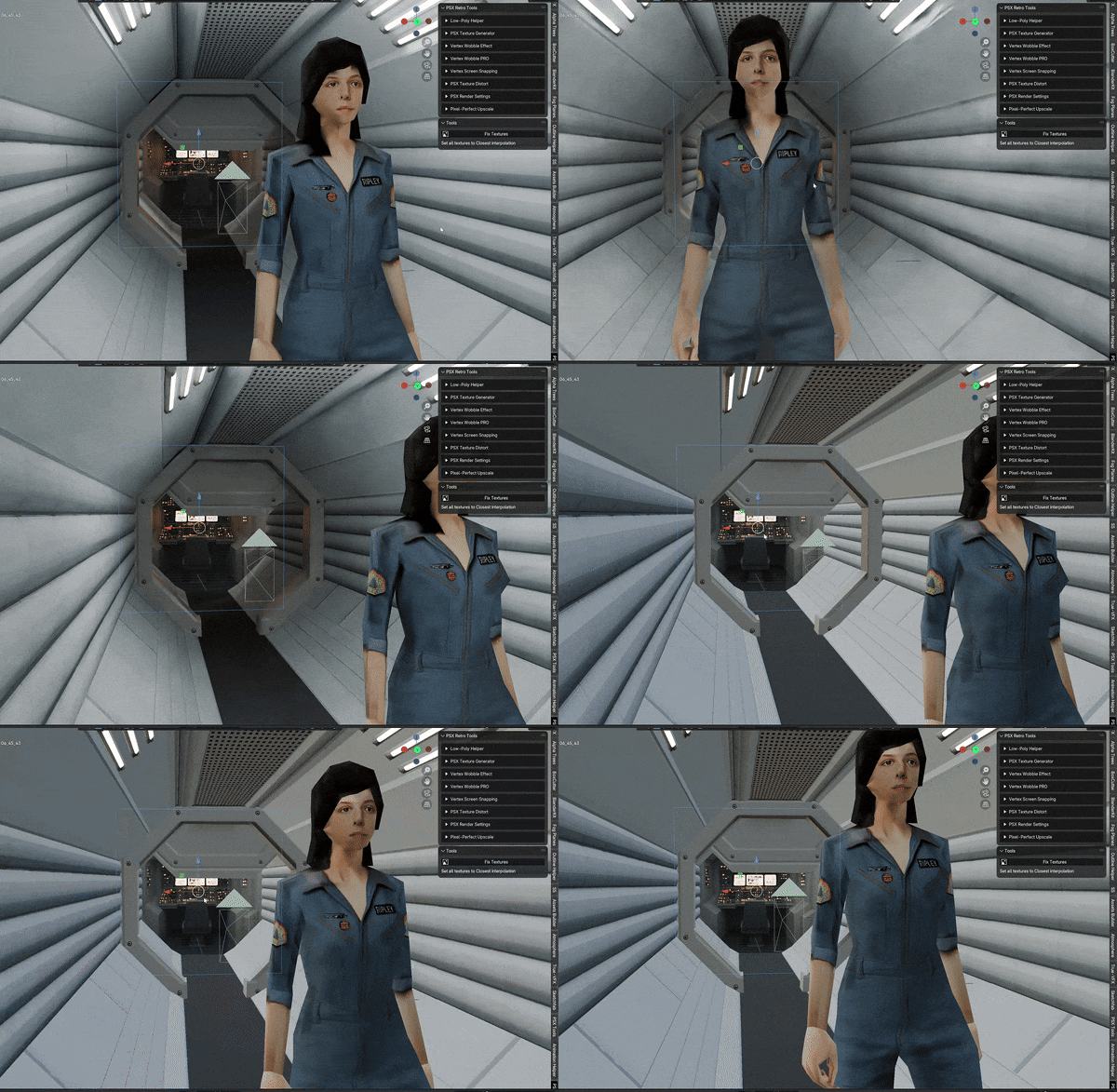
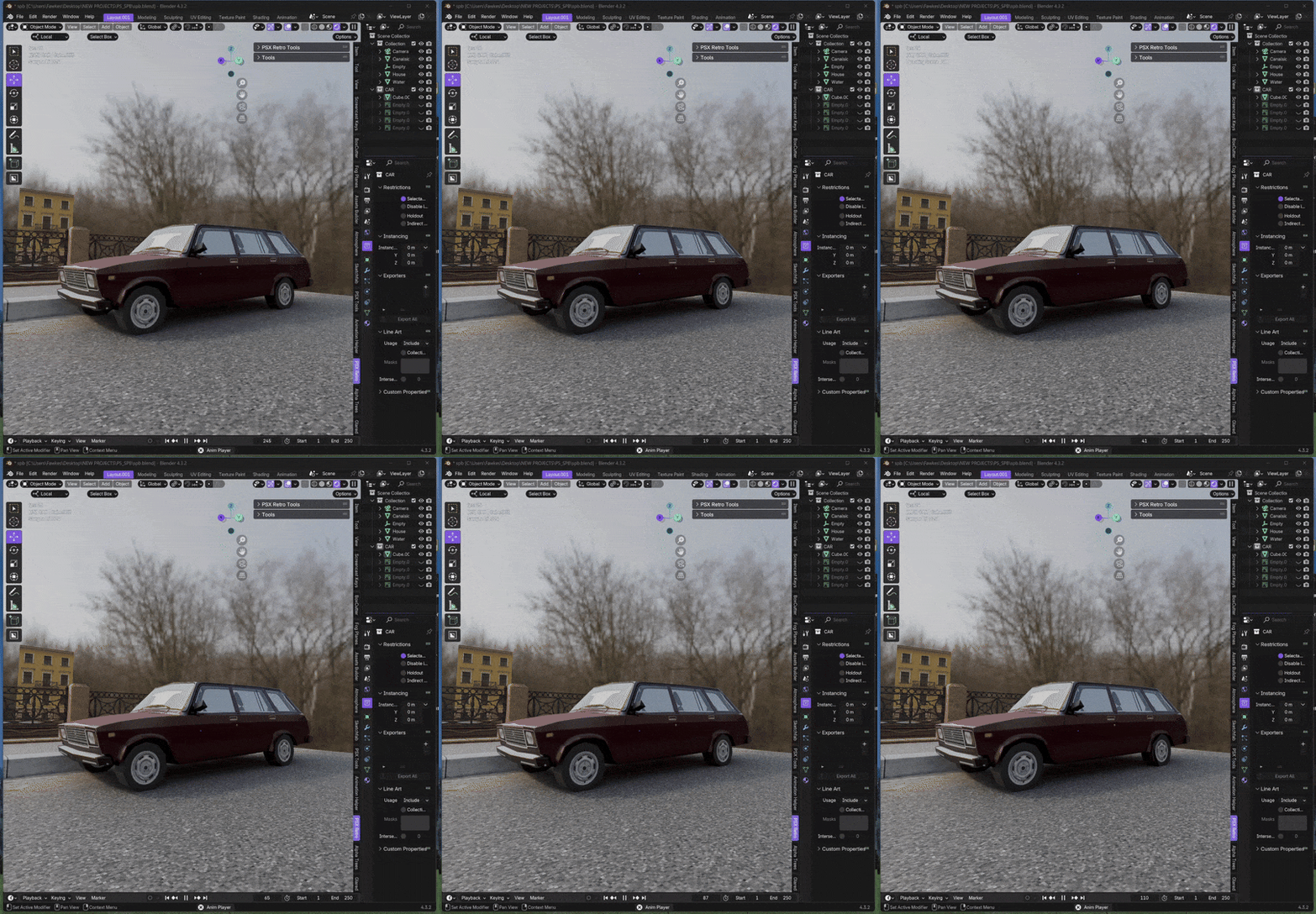
Bring the magic of PlayStation 1–era visuals into Blender with PSX Retro Tools — a complete toolkit for creating authentic low-poly, low-resolution, dithered graphics. Perfect for 3D artists, game developers, and retro enthusiasts
Features:
-
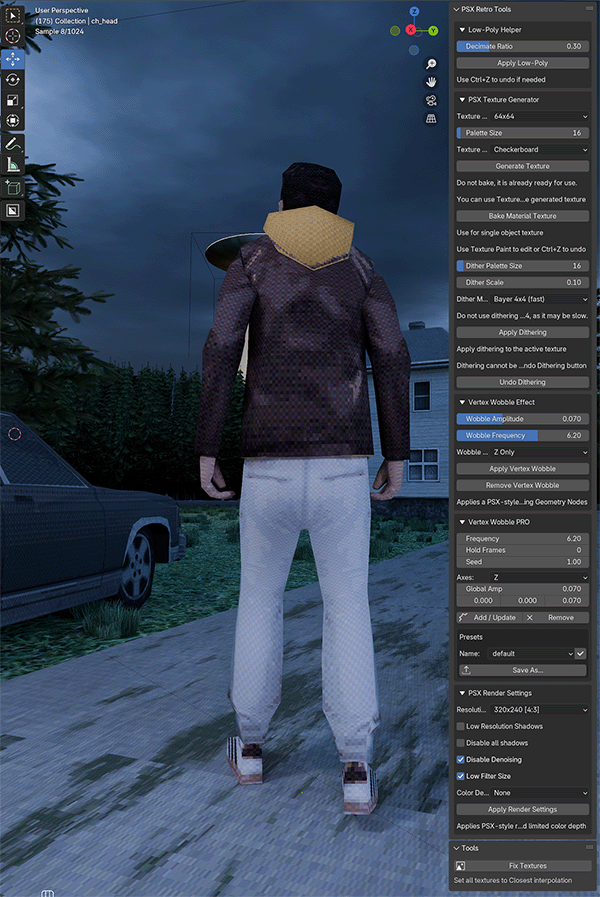
Low-Poly Simplifier — Automatically decimate and triangulate meshes for authentic PSX aesthetics
-
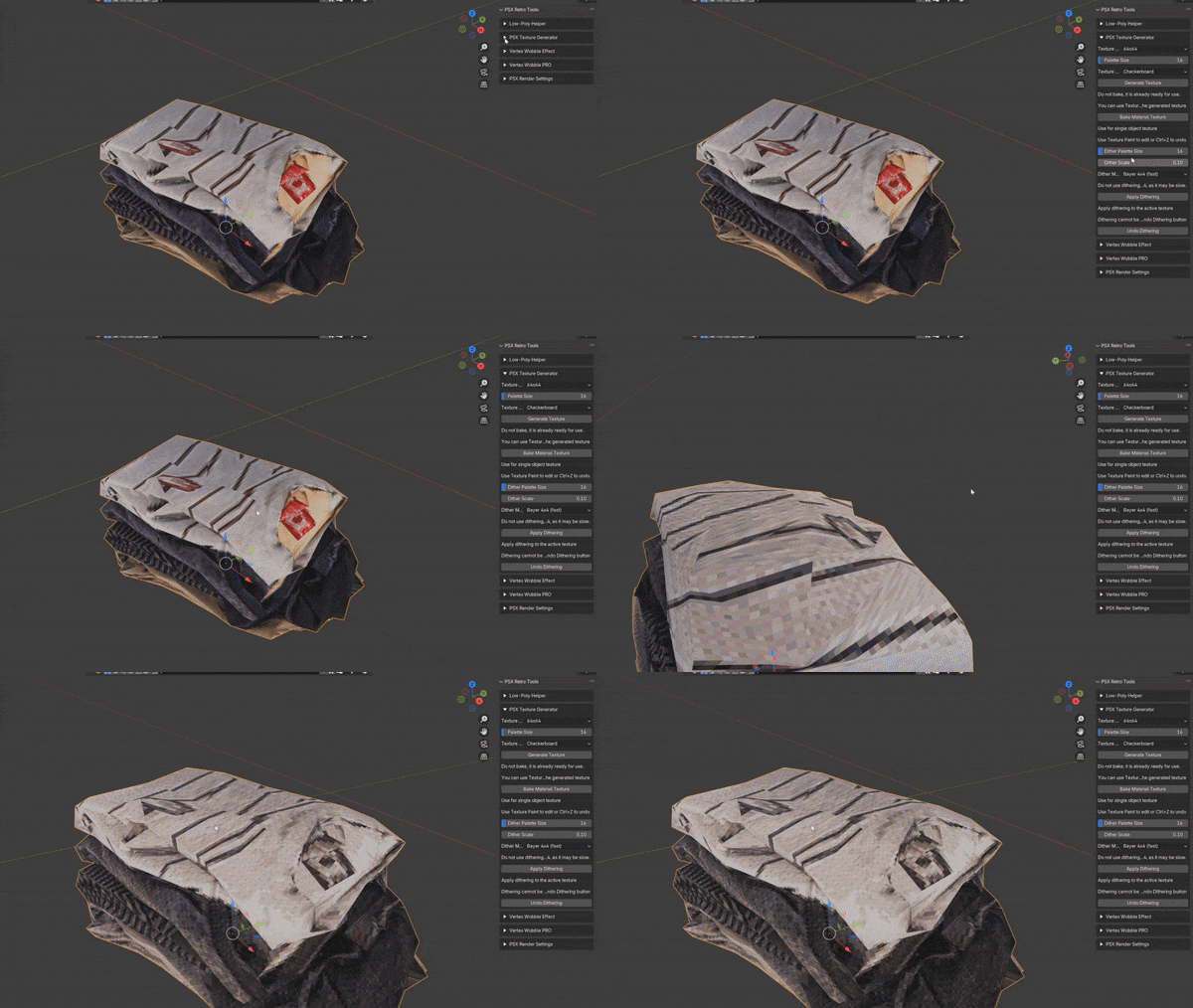
Low-Resolution Texture Baking — Bake all object materials into a single low-res texture, preserving UV layout and palette
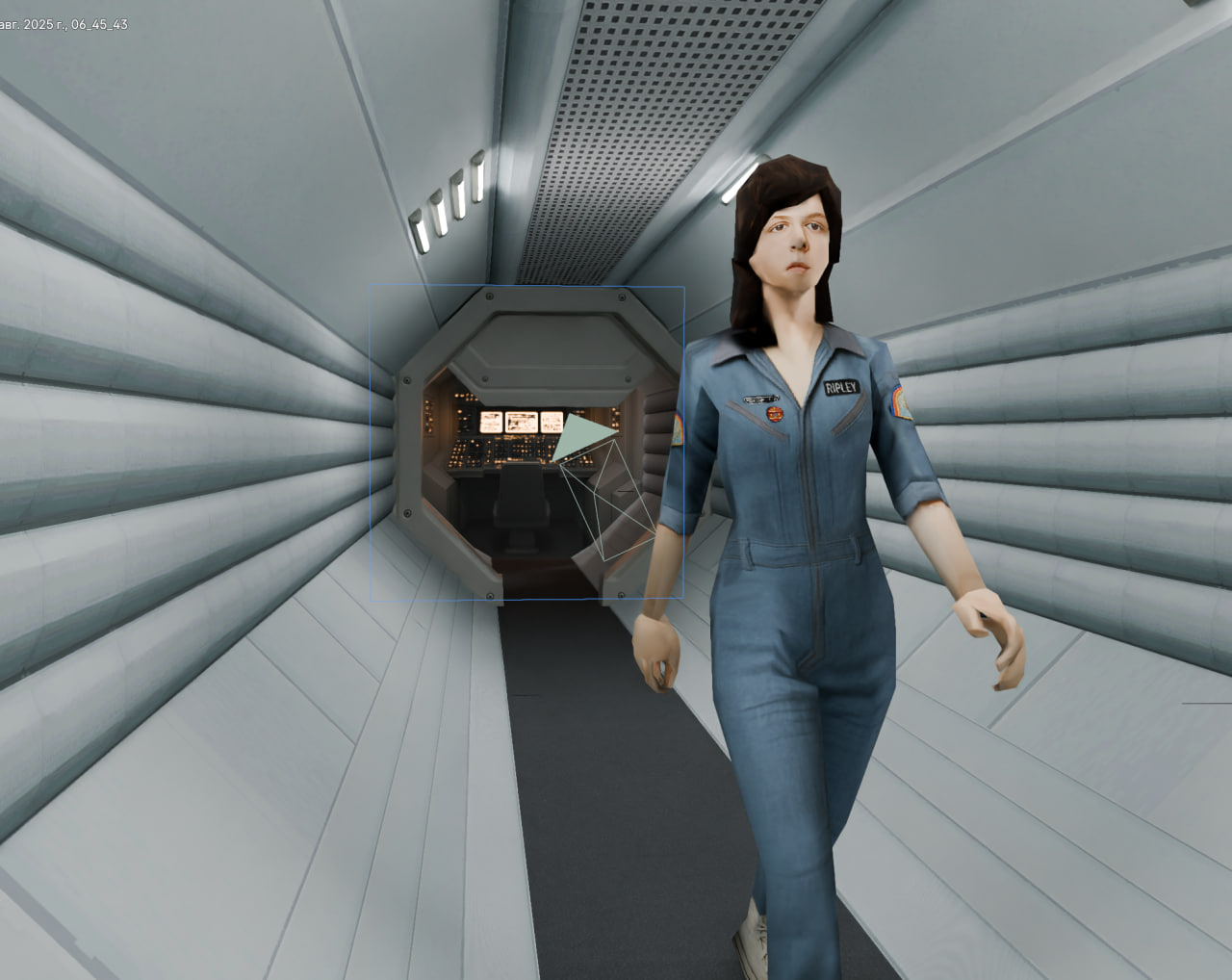
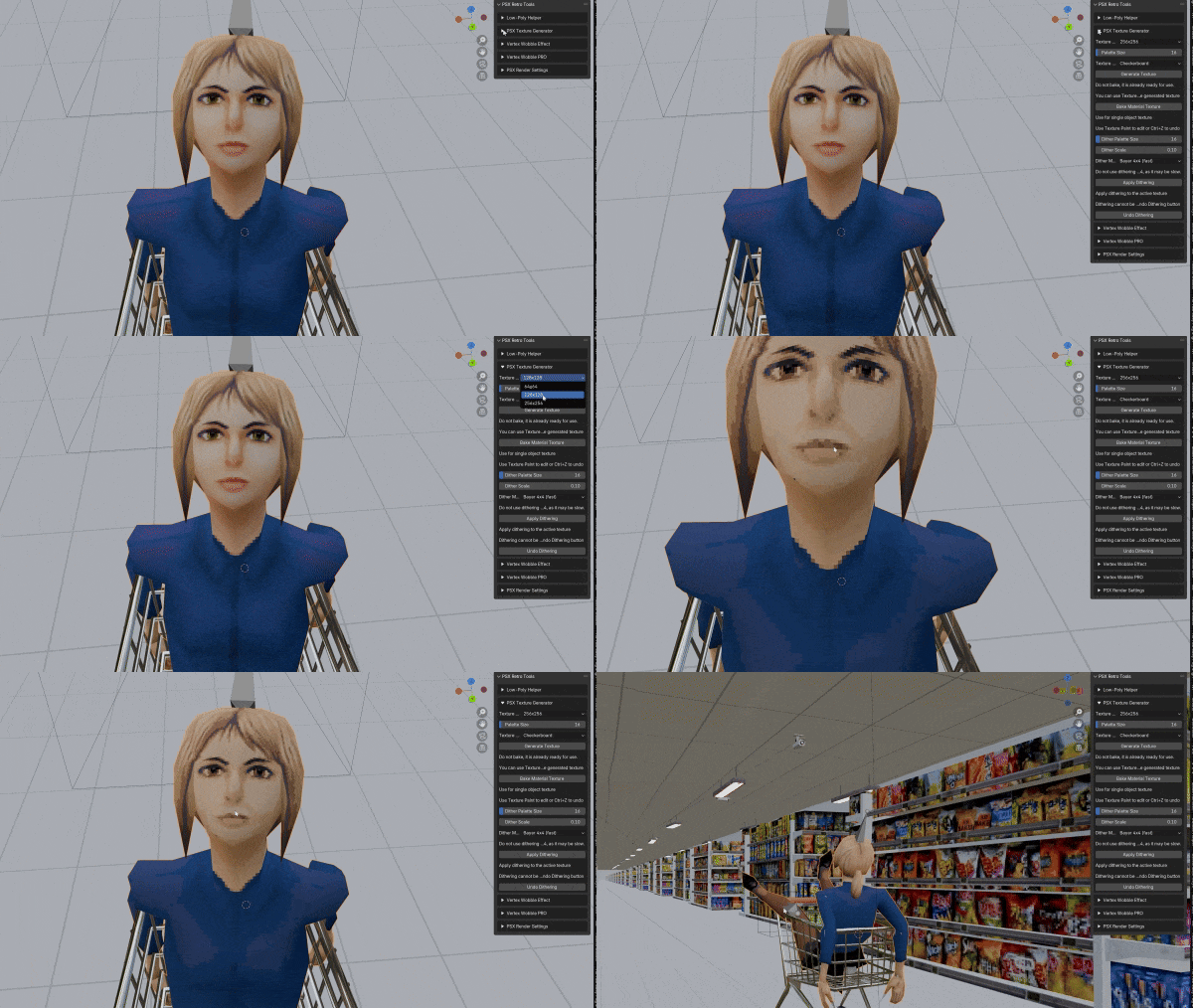
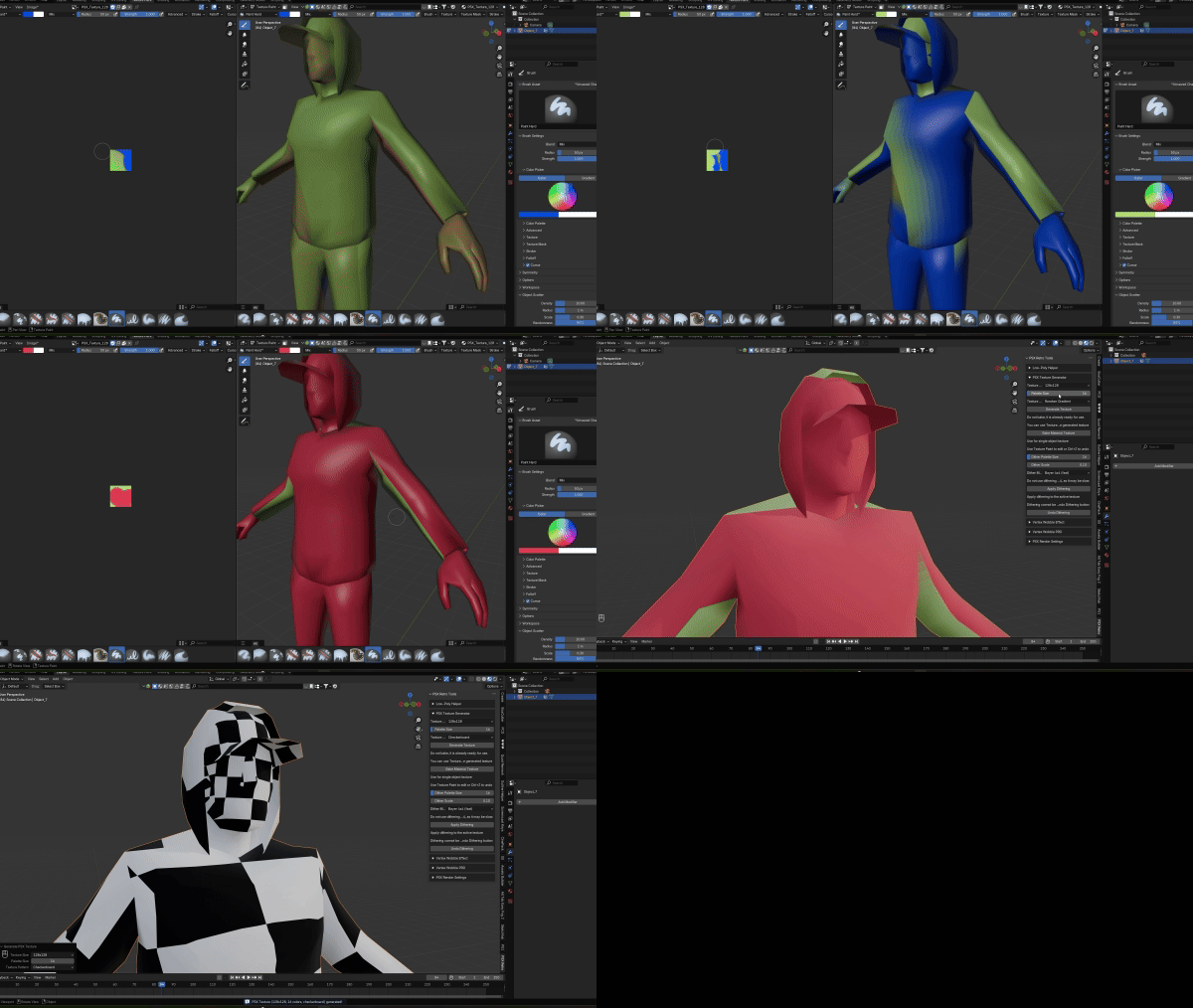
- Texture Generator — Generate base textures (checkerboard, gradients, for texture painting) with limited color palettes
Color Dithering — Bayer, Floyd–Steinberg, Atkinson, and more, with adjustable scale
-
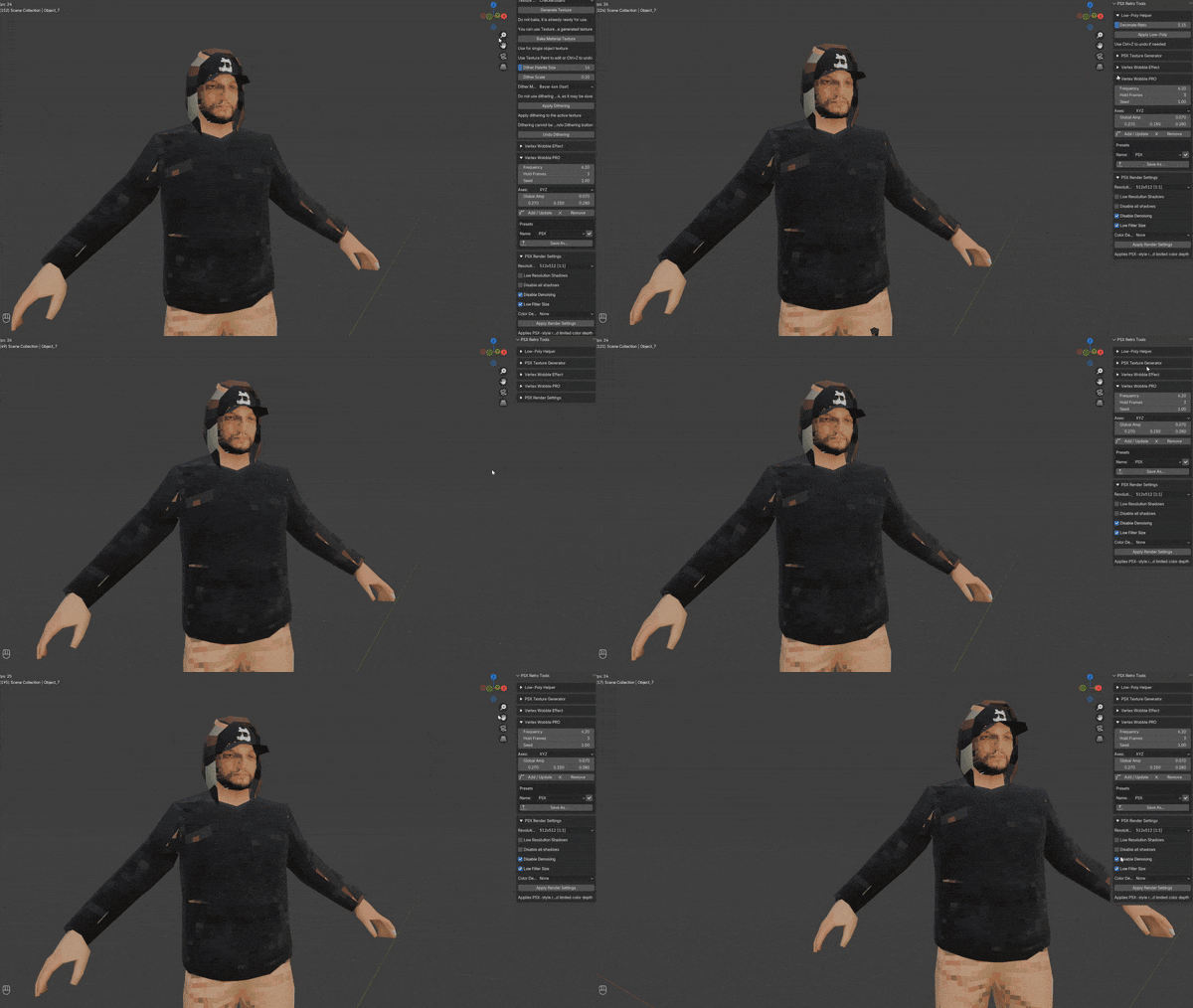
Vertex Wobble — Geometry Nodes–based vertex jitter effect in the style of PS1
-
Vertex Wobble PRO — Hold frames, axis selection, per-axis amplitude, presets, instant modifier sync
-
Shadow Controls — Low Resolution Shadows mode and full shadow disabling
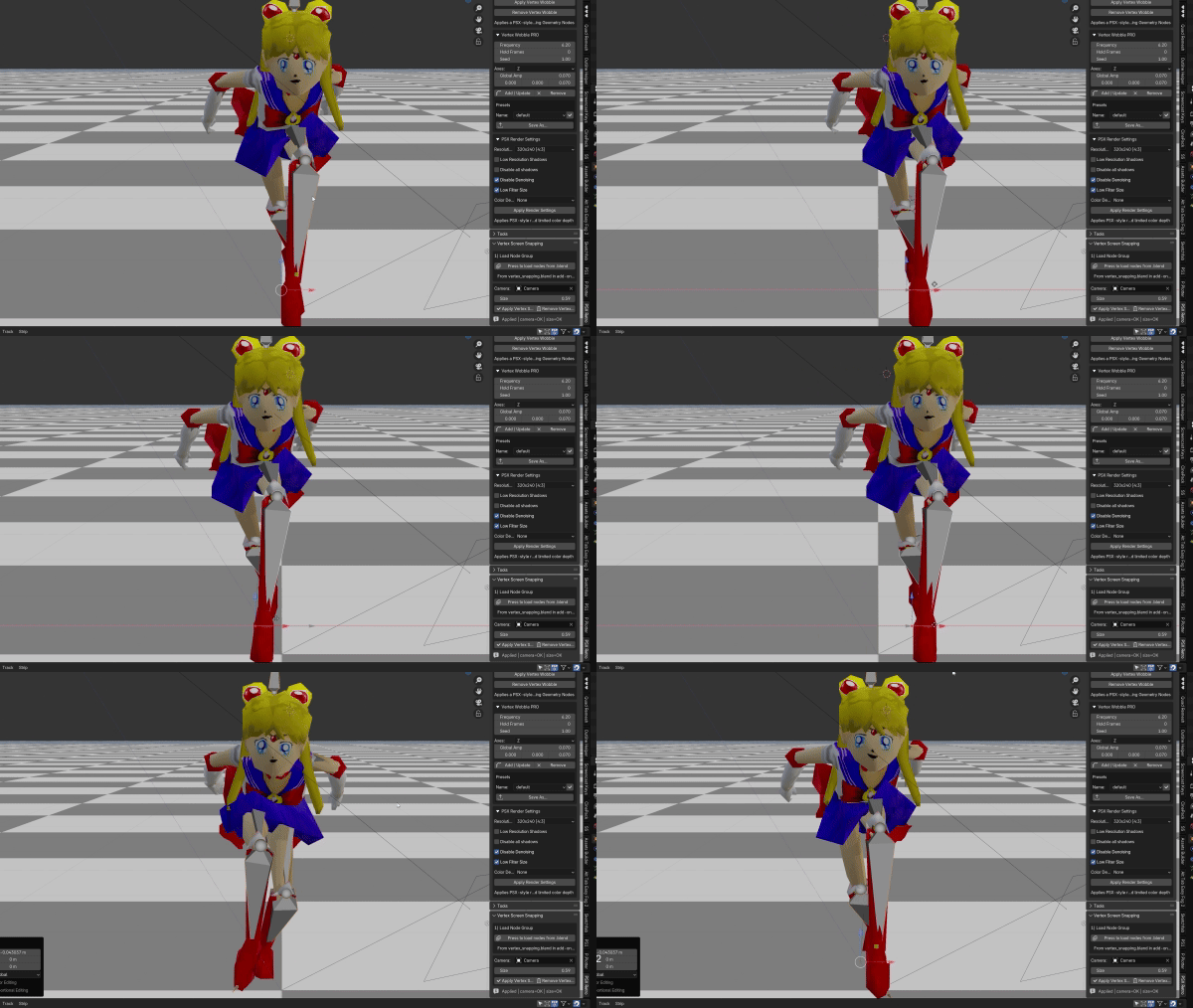
- Vertex Screen Snapping — True vertex snapping effect
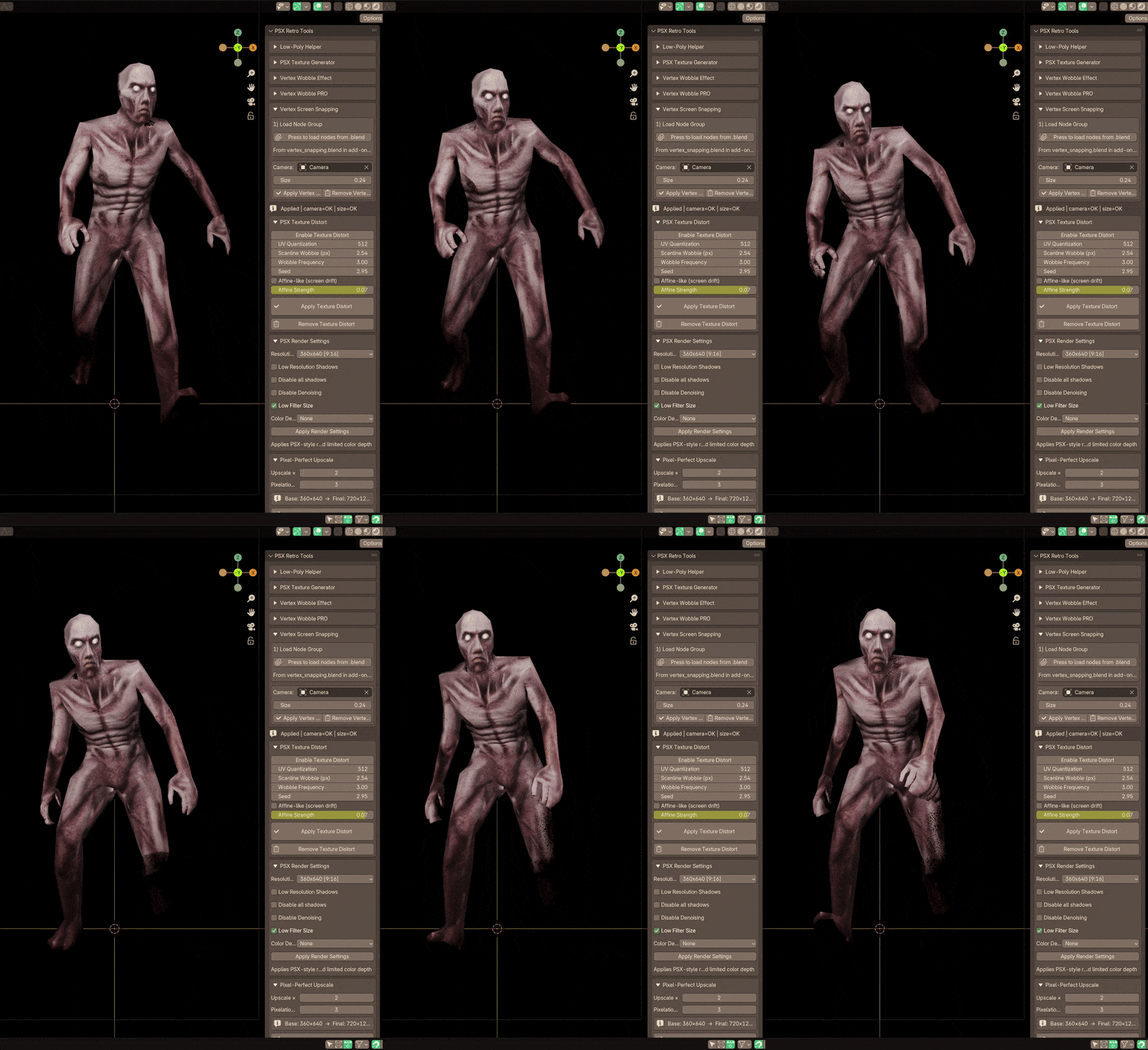
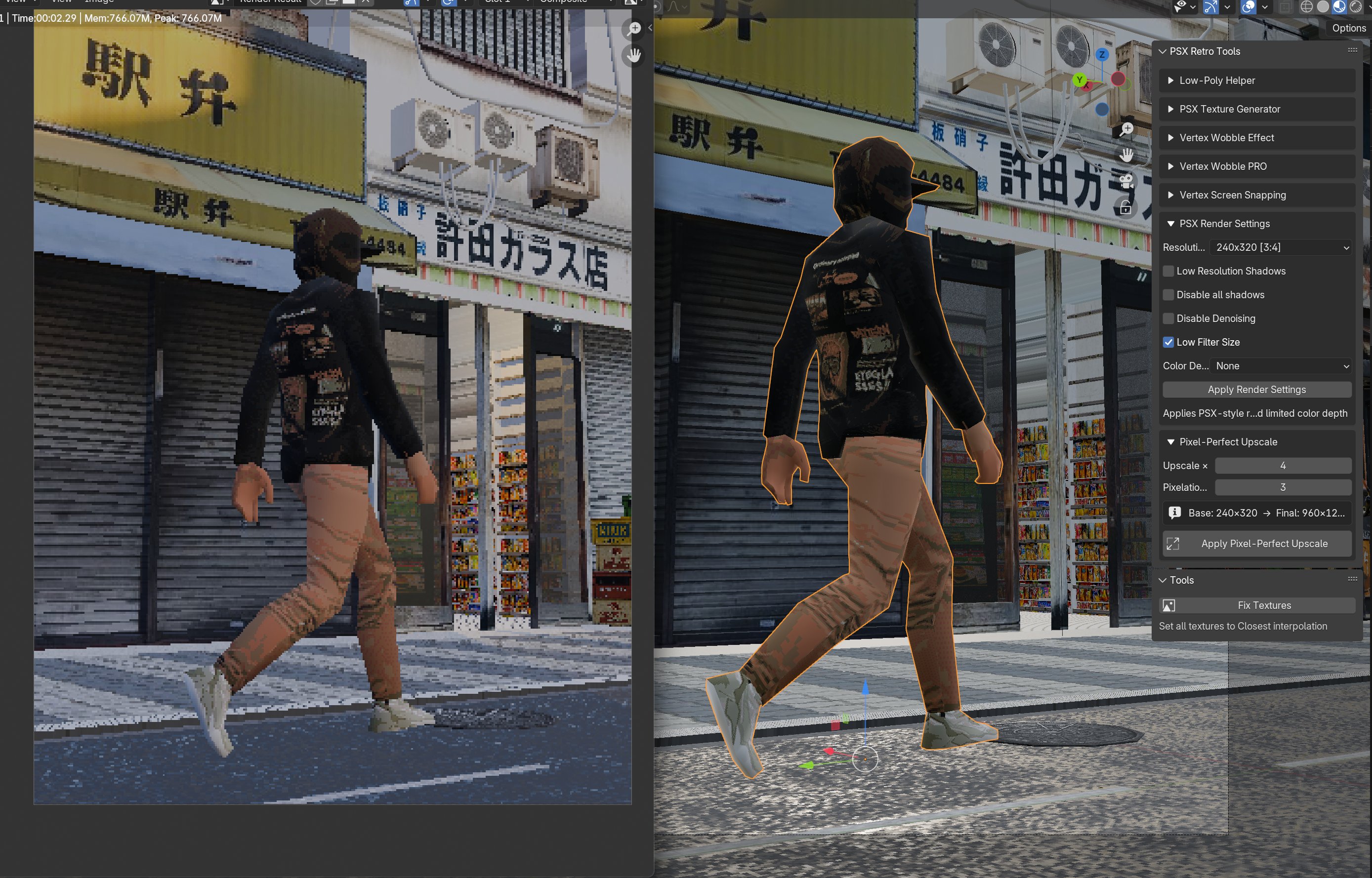
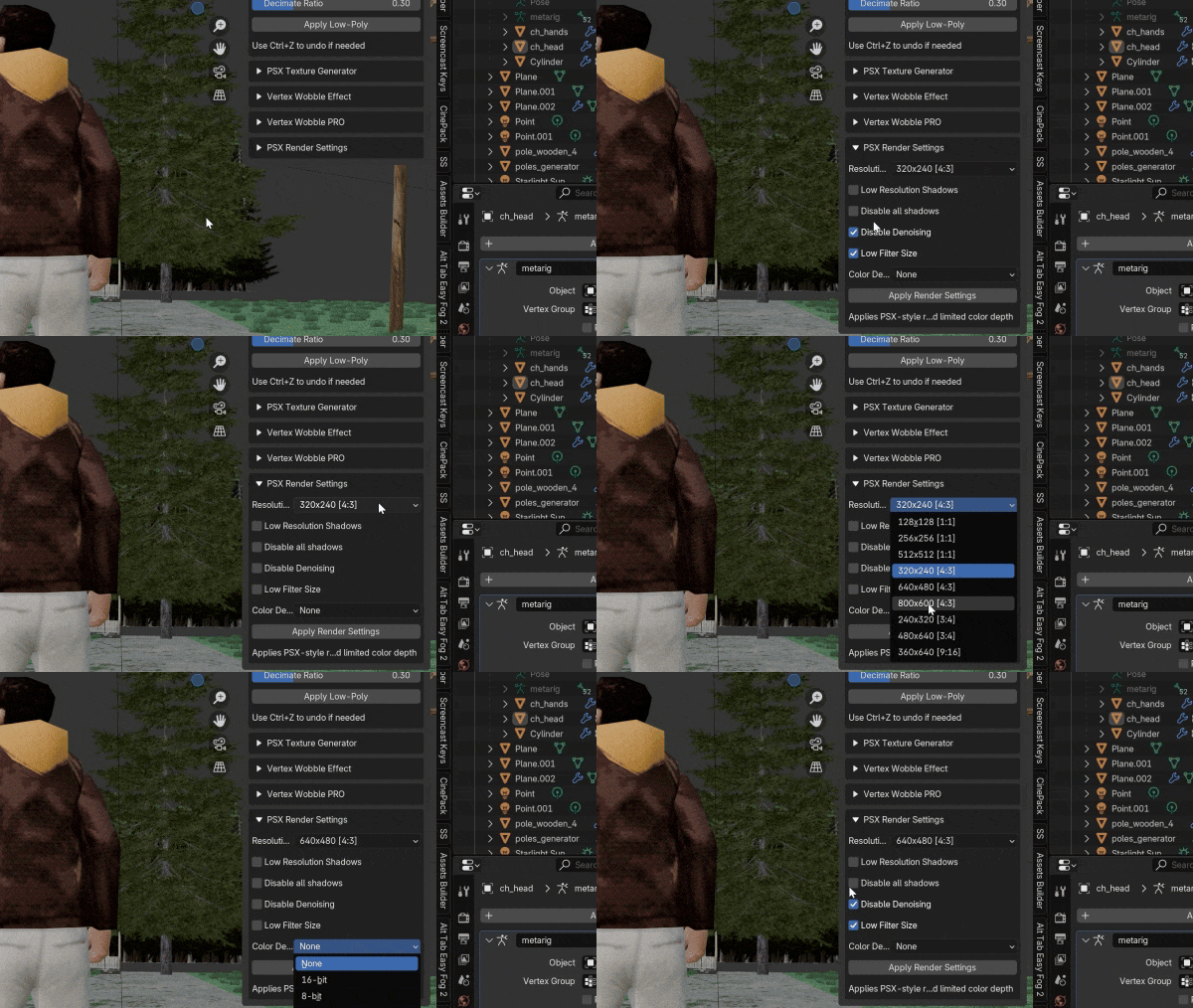
Render Presets — Quick PSX resolution presets, color depth options, AA toggle
Pixel - Perfect Upscale
Texture Distort
Why choose PSX Retro Tools?
-
Designed for speed — one-click setup for retro rendering
-
Ideal for indie games, art projects, and animations with PS1 vibes
Download
Install instructions
Dependency:
You need to install Pillow, this library is required for the PSX Texture Generator function:
Run blender as administrator!
- Download
psx_tools_dependency_installer.py. - In Blender: Edit → Preferences → Add-ons → Install…, select the file, click Install Add-on.
- Search for PSX Tools — Dependency Installer and enable it.
- In 3D View, press N → PSX Retro tab → Dependencies panel.
- Check status:
- ✅ OK — installed.
- ❌ Not installed — missing.
- Click Install NumPy, Install Pillow, or Install/Update All.
- Wait until the log says finished and a popup asks to restart Blender.
- Restart Blender.
- Install PSX Retro Tools
Addon:
1. Download psx_addon.zip
2. In Blender: Edit > Preferences > Add-ons > Install
3. Enable 'PSX Retro Tools' from the list
---
Or manual Pillow install:
Install Pillow (only needs to be done once):
-
Open Blender.
-
Go to Edit → Preferences → System → Open Console (or open a terminal/command prompt as administrator)
-
Run:
pip install Pillow
If that doesn’t work, try:
python -m pip install Pillow
(Use Blender’s bundled Python if needed:
"<path-to-blender>/4.3/python/bin/python.exe" -m pip install Pillow)
-
-
Restart Blender after installation
Known issues:
After Bake Texture, rename the resulting texture so that it is not duplicated when baking a new texture
Development log
- Test Build PSX Retro Tools for Blender 5.014 days ago
- Vertex Screen Snapping UI update59 days ago
- Update 1.6.067 days ago
- Update 1.4.3977 days ago
- Blender (Steam) – How to Install Python Dependencies on macOS & Windows87 days ago
- PSX Texture DistortAug 25, 2025
- Pixel Perfect Upscale releaseAug 21, 2025
- PSX Tools Dependency InstallerAug 13, 2025
Comments
Log in with itch.io to leave a comment.
i cant see Dependencies panel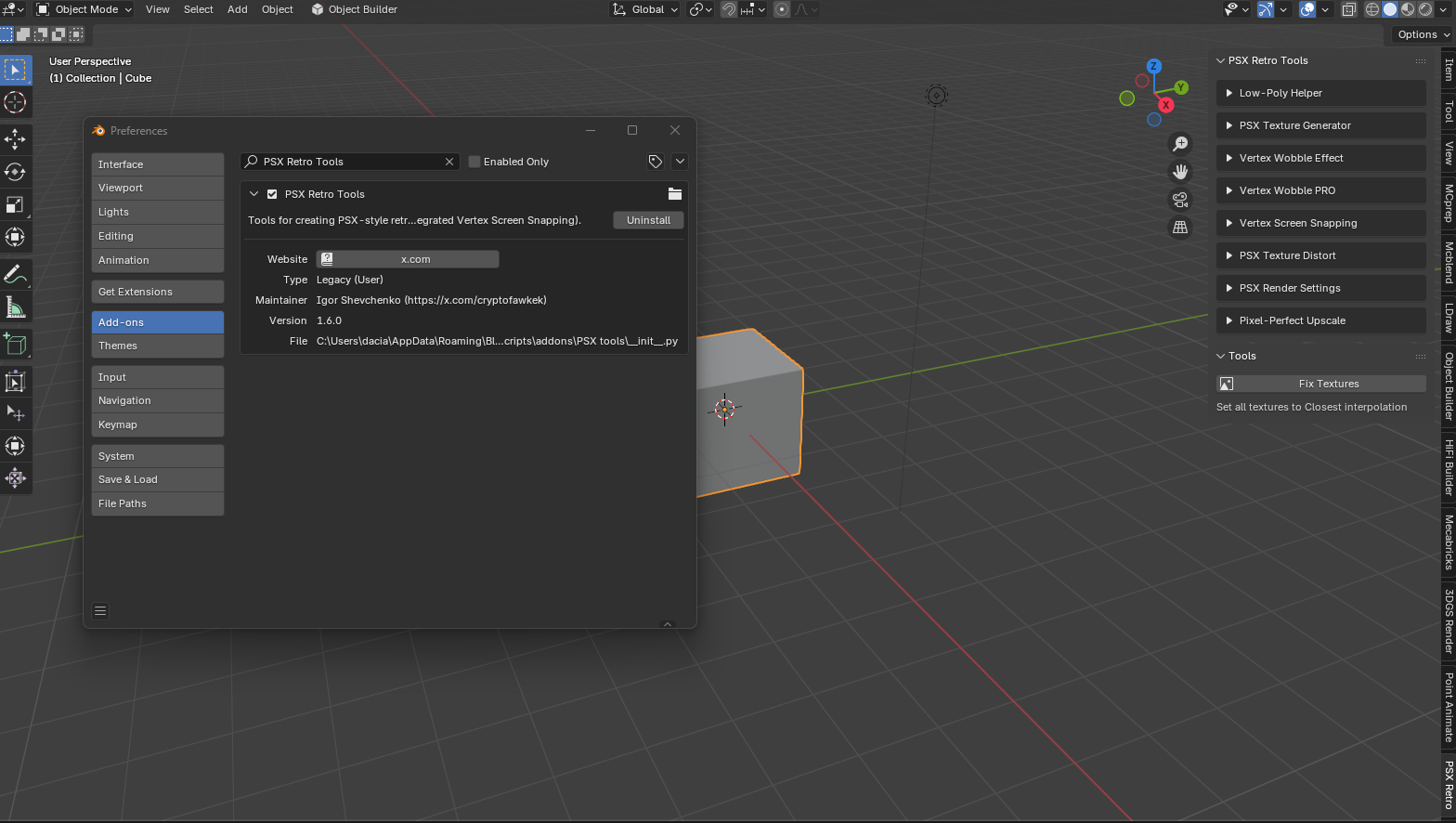
Download it separately on this page
Excellent add-on! It would be great to see a video showcasing its capabilities if one hasn't been done already.
how can i get those character models?
https://skfb.ly/o7JPX
https://skfb.ly/oVxMA
Thank you so much you are really good person much love :)
Thank you!
Thank you so much!
<3
Lovely.
Thank you!
Looks cool! But I can't for the life of me get the texture stuff working. I verified that Pillow was installed, I can look directly at the Image file in the PIL folder, but I'm still getting the same "Image is not defined" issued that it seems a lot of people are getting.
I've been through the rabbit hole of comments and fixes, but I'm not quiet sure how to get it working. If anyone has any suggestions I'd appreciate it!
I have rewritten the instructions
Pease completely remove the plugin, including from the folder (addons)
Then, try following the new instructions step by step.
It works for me on both Mac and PC; I have tested it several times with Blender 4.3, not Steam
You’re using a different
pip/Python than Blender’s, so Pillow goes to the wrong place. Install it with Blender’s Python and restart:It finally worked!
Thank you so much, this add on is amazing! So happy I could get it working!
There will be an update soon and the addon will become more convenient! Thank you!
i cant get it to work :( i think i have Pillow installed in the correct path.Or am i missing something. I also tried copying the PIL and Pillow- modules to the blender instal folder, didn t work.
C:\Windows\System32>"C:\Program Files\Blender Foundation\Blender 4.5\4.5\python\bin\python.exe" -m pip install pillow
Requirement already satisfied: pillow in c:\program files\blender foundation\blender 4.5\4.5\python\lib (11.3.0)
File "C:\Users\ado_o\AppData\Roaming\Blender Foundation\Blender\4.5\scripts\addons\PSX tools\psx_addon.py", line 187, in invoke
return self.execute(context)
^^^^^^^^^^^^^^^^^^^^^
File "C:\Users\ado_o\AppData\Roaming\Blender Foundation\Blender\4.5\scripts\addons\PSX tools\psx_addon.py", line 213, in execute
temp_image = Image.new("RGBA", (resolution, resolution))
^^^^^
NameError: name 'Image' is not defined. Did you mean: 'image'?
Try it!
https://fawkek.itch.io/psx-retro-tools/devlog/1008531/psx-tools-dependency-insta...
i did, still the same error :(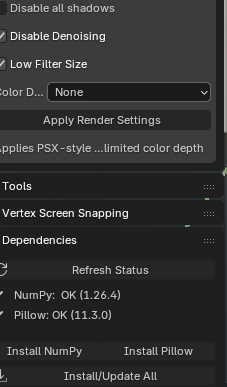
Restart Blender after installing Pillow
Pillow may be installed, but the add-on was loaded before installation.
Either completely restart Blender, or in
Edit → Preferences → Add-ons, uncheck the add-on and check it again to reload it.Verify Pillow in Blender’s Python Console In Blender:
Scripting → Python Console, run:The last line should print something like
<module 'PIL.Image' ...>.If it errors here, Pillow is still not available to Blender’s Python.
Possible reasons it still fails
Pillow is installed into the wrong Python (system Python, not Blender’s built-in).
Pillow was installed into another Blender version.
The add-on’s code didn’t import
Image(from PIL import Image) before using it.If Pillow shows as installed in step 2 but the add-on still fails
This means the add-on module is still using the “old state” from before Pillow was available.
Reload the add-on (disable/enable it) or restart Blender so it imports
Imageproperly.double check that you have them copied to:
and not:
It looks like you may have copied them one directory to high.
thanks for the replay! i have PIL and pillow-11.30.0 dist in the correct folder. keep getting the same error.i think for some reason, the add on is not getting the right path to the install site-packages.
Could you run this from the command prompt:
It should give you info about the library including the install location:
This is the output from mine. I just want to see if there is a conflict with the install location from the pip command side of things.
I feel like you are super close to getting it working!
I am trying to install Pillow like you said, but Pillow refuses to install anywhere other than
C:\Users\*****\AppData\Local\Programs\Python\Python313\Lib\site-packages
Even when I specify the path for Blender. I'm not sure how to fix this and I will check in because I would really like to use this addon.
If
pipkeeps installing Pillow into your system Python (e.g.Python313\site-packages) instead of Blender, it means you’re not using Blender’s Python. Do this:1) Find Blender’s Python
In Blender: Edit → Preferences → System → Open Console, then run:
Copy the path. It usually looks like:
(If you use the Steam build, the path will be under your Steam folder.)
2) Install Pillow into Blender’s Python
Close Blender, open Command Prompt (cmd), and run these exact commands with the path you copied:
Blender automatically adds
…\Blender\4.3\scripts\modulestoPYTHONPATH, so it will find Pillow there.3) Restart Blender
After installation, restart Blender and try the add-on again.
If they’re on macOS/Linux, same idea:
macOS (Terminal):
Linux:
If they still get errors, ask them to paste the full console output—usually it’s just the wrong Python path or missing quotes around a path with spaces
And try the solutions from the comments, they should help
I tried installing it through the Blender python and that didn't work, but the dependency installer did! The tools seem to work with the exception of generate texture where it says "image" not defined. I'm still pretty new to Blender so I may be missing a step on that, but thanks for your help!
If texture generation does not work, then Pillow is still not installed correctly
Let's look at the tips below, maybe something will help, everyone has different configurations.
Sorry you are still having some trouble, did you try moving the library folders from the Users install location to Blenders yet?
just to verify, your Pillow is installed here?
If you open this location on your computer there should be a folder named "PIL" and another named "pillow-11.3.0.dist-info"
Quick tip for anyone in the future installing this. You need to make sure you install Pillow as administrator from the command prompt or it will install to the incorrect library folder location and you will get this error when trying to generate a texture:
You can verify the install location by running the show command:
This is the incorrect install location:
The correct install location should be:
Newer versions of Blender no longer look in the users path for python libraries. I believe this was changed in Blender 4.2 so if you are running a later version this is most likely the problem.
If the install location is wrong, you can either move the "PIL" folder and the "pillow-11.3.0.dist-info" folder from the users install location to Blenders install location.
Or you can run the original install command again as admin
which should correctly install to Blenders library location.
This worked for me on Blender 4.5. Be sure to replace any version numbers in the examples with your version of blender and any **** with your user name.
Thanks for the details, man. I didn't have any testers, sorry
No worries, and no need to apologize. Just glad to help figure it out. Keep the the awesome work!
I installed it from command prompt with admin and it ended up in:
It worked fine after copy pasting to the proper directory. Im on Win11, B 4.4
I am having the same problem as DaNoobius. Pillow installs only in
C:\Users\*****\AppData\Local\Programs\Python\Python313\Lib\site-packages
Even when I tell it to install in the path for Blender. I've tried all the solutions here so far and I'm not sure what to do. Blender keeps telling me that PIL is not installed.
I had to ask Chat GPT to help me since nothing would work. The addon worked with the lines it gave me, maybe this can help you:
In CMD (as admin)
Here’s the quick one-liner you can paste directly into your Python REPL:
__import__('subprocess').check_call([__import__('sys').executable, '-m', 'pip', 'install', 'Pillow'])
If you also want to upgrade pip in one line:
__import__('subprocess').check_call([__import__('sys').executable, '-m', 'pip', 'install', '--upgrade', 'pip'])
I'm just getting syntax errors when trying to install Pillow
How to install Pillow for Blender
import sys
print(sys.executable)
C:\Program Files\Blender Foundation\Blender 4.3\4.3\python\bin\python.exe
"C:\Program Files\Blender Foundation\Blender 4.3\4.3\python\bin\python.exe" -m pip install --upgrade pip
"C:\Program Files\Blender Foundation\Blender 4.3\4.3\python\bin\python.exe" -m pip install Pillow
looks awesome, will give it a shot
edit: tried generating texure, it returned this:
Python: Traceback (most recent call last):
File "C:\Users\itai5\AppData\Roaming\Blender Foundation\Blender\4.3\scripts\addons\PSX tools\psx_addon.py", line 187, in invoke
return self.execute(context)
^^^^^^^^^^^^^^^^^^^^^
File "C:\Users\itai5\AppData\Roaming\Blender Foundation\Blender\4.3\scripts\addons\PSX tools\psx_addon.py", line 213, in execute
temp_image = Image.new("RGBA", (resolution, resolution))
^^^^^
NameError: name 'Image' is not defined. Did you mean: 'image'?
also, is there some basic documentation? the readme doesnt say much and im kind of a blender noob atm
It looks like your Blender can’t find the Pillow library, which is needed to generate textures. Here’s how to fix it:
Install Pillow (only needs to be done once):
Open Blender.
Go to Edit → Preferences → System → Open Console (or open a terminal/command prompt).
Run:
If that doesn’t work, try:
(Use Blender’s bundled Python if needed:
"<path-to-blender>/4.3/python/bin/python.exe" -m pip install Pillow)Restart Blender after installation.
Try generating the texture again — it should work without errors.
Just a heads up if you are still having this error after the install and reboot, I found i had to install Pillow as administrator from the command prompt or else it gets installed into the incorrect library folder and Blender doesn't know where to look.
Thanks for the tip!